Your account & sign-in
Your LetsFindWhy account starts with nothing but an email address. Enter it once, click the sign-in link we email you, and you’re in. That single click verifies your email and creates the account.
A password is genuinely optional. You can sign in by email link every time, set a password whenever you like, or add a passkey (a sign-in method built into your device, such as a fingerprint or face unlock).
This page covers creating an account, every way to sign in, the security settings for passwords, passkeys, and sessions, and the invitations that bring teammates into your organization.
How signing in works: email links, passwords, and passkeys
There are three ways into your account, and you can mix them freely:
- Email link: the default. Enter your email, we send a single-use sign-in link, and clicking it signs you in. Each link works once and expires after 15 minutes.
- Password: optional, at least 8 characters. Set one during signup or later in your settings; without one, the email link is all you need.
- Passkey: your device’s fingerprint, face unlock, or security key. Register one in your settings, then sign in with a tap. No password, no inbox.
Your account also connects you to a team. Everyone belongs to an organization, the workspace that holds projects, members, and the subscription. LetsFindWhy creates one for you at first sign-in, and teammates join through email invitations carrying a role: Owner, Admin, or Member. Owners and Admins invite people and manage billing; every member can work on the research.
How to create a LetsFindWhy account
- On the Sign Up page, enter your address in the Email field.
- Click Send sign-in link. The card switches to Check your inbox, confirming where the link went.
- Open the email and click Sign in. That one click verifies your email and creates your account. There is no separate verification step.
The link lands you on the Welcome to LetsFindWhy form, a one-time setup you can finish or skip:
- Fill in your Name and check the pre-detected country, language, and timezone.
- To sign in without an email link later, set a Password (optional) of at least 8 characters. You can also do this any time in your settings.
- Click Save and continue (or Skip for now to head straight in).
You land on the Start page, and LetsFindWhy creates an organization named after you. You are its Owner. If you chose Skip for now, the welcome form returns at your next sign-in until you save it once.
Already have an account? Entering your email on the Sign Up page is harmless: the same link simply signs you in, and no duplicate account is created.
How to sign in to LetsFindWhy
The Sign In page offers every method in one place. Use whichever you’ve set up:
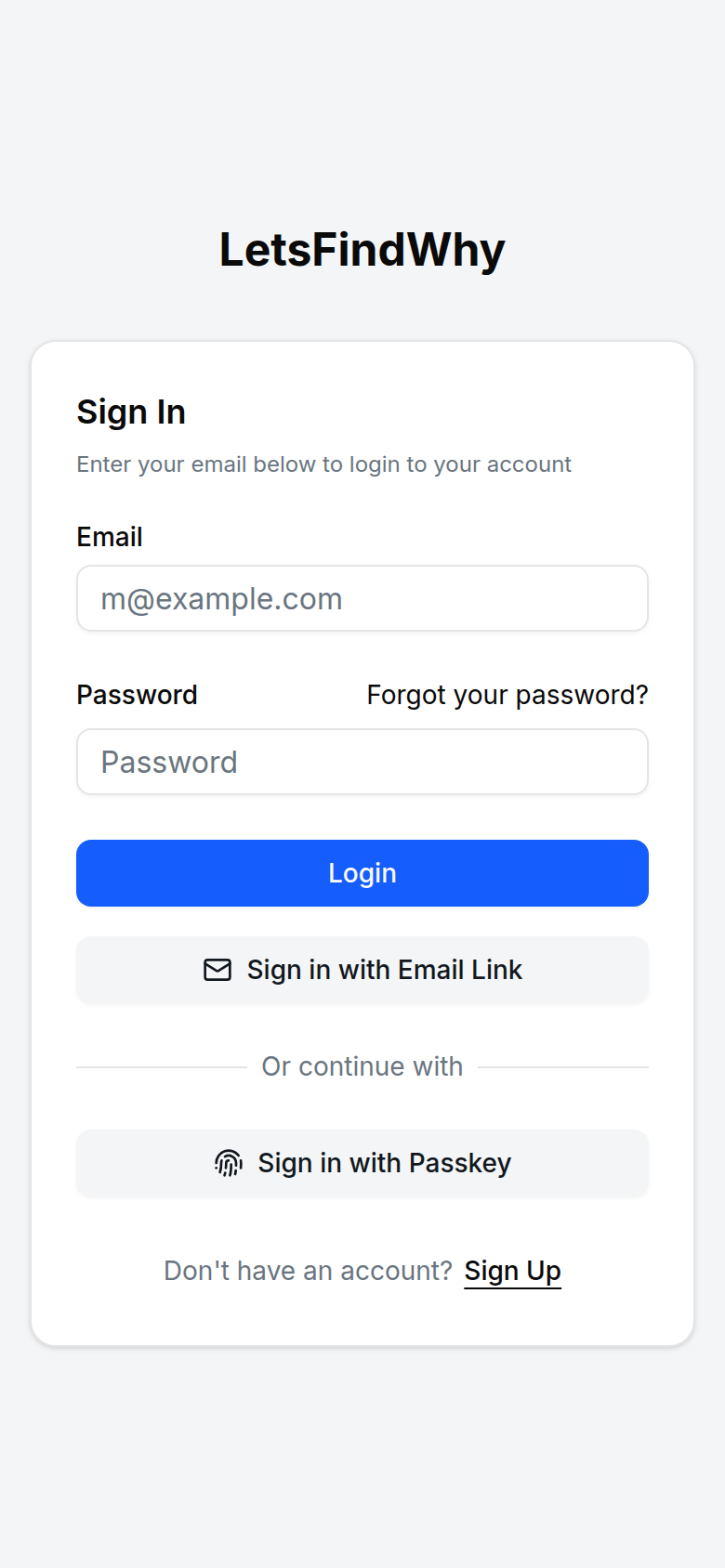
- With a password: enter your Email and Password, then click Login.
- Without a password: click Sign in with Email Link, enter your email, click Email me a sign-in link, and open the link we send. This works even before you have an account. One is created for you.
- With a passkey: click Sign in with Passkey and approve your browser’s prompt, whether a fingerprint, face unlock, or security key.
Sign in with Google, Apple, or Microsoft buttons appear as well when those providers are enabled on the platform. After signing in, you continue to the page you were headed for, or to Start.
Reset a forgotten password
- Click Forgot your password? on the Sign In page.
- Enter your Email and click Send reset link.
- Open the “Reset your password” email, choose a new password, and click Save new password.
Never set a password? There’s nothing to reset. Sign in with Sign in with Email Link instead.
How to manage your password, passkeys, and sessions
Open User Settings in the sidebar. The page itself is titled Settings. Its security cards cover everything below:
- Change Password: set a new password. If you never created one, the card reads Set Password and emails you a setup link instead.
- Passkeys: click Add Passkey and approve the browser prompt to register this device. Each passkey is listed in the card and can be removed with Delete. Passkeys are stored per device and browser, so add one on each machine you use.
- Sessions: every device you’re signed in on, with the Current Session marked. Click Revoke to sign a device out remotely. Sessions expire on their own after 7 days.
How to invite a teammate by email
Inviting takes an organization Owner or Admin. Anyone can be invited: a colleague who moderates, an analyst, or a client who only watches sessions as an observer (a silent viewer respondents never see).
- Open Organization Settings from the sidebar.
- In the Members card, click Invite Member.
- Enter the invitee’s Email and pick a Role: Admin or Member. The Owner option appears only when you are the organization’s Owner.
- Click Send Invitation.
The invitation shows up under Pending Invitations, where Cancel Invitation withdraws it. The invitee receives an email that expires 48 hours after sending. If it lapses, just send a new one.
How to accept an organization invitation
- Click Accept Invitation in the invitation email.
- Sign in (or create an account first) with the exact email address the invitation was sent to.
- On the Accept Invitation card, check the organization name and the role you’re offered, then click Accept (or Reject to decline).
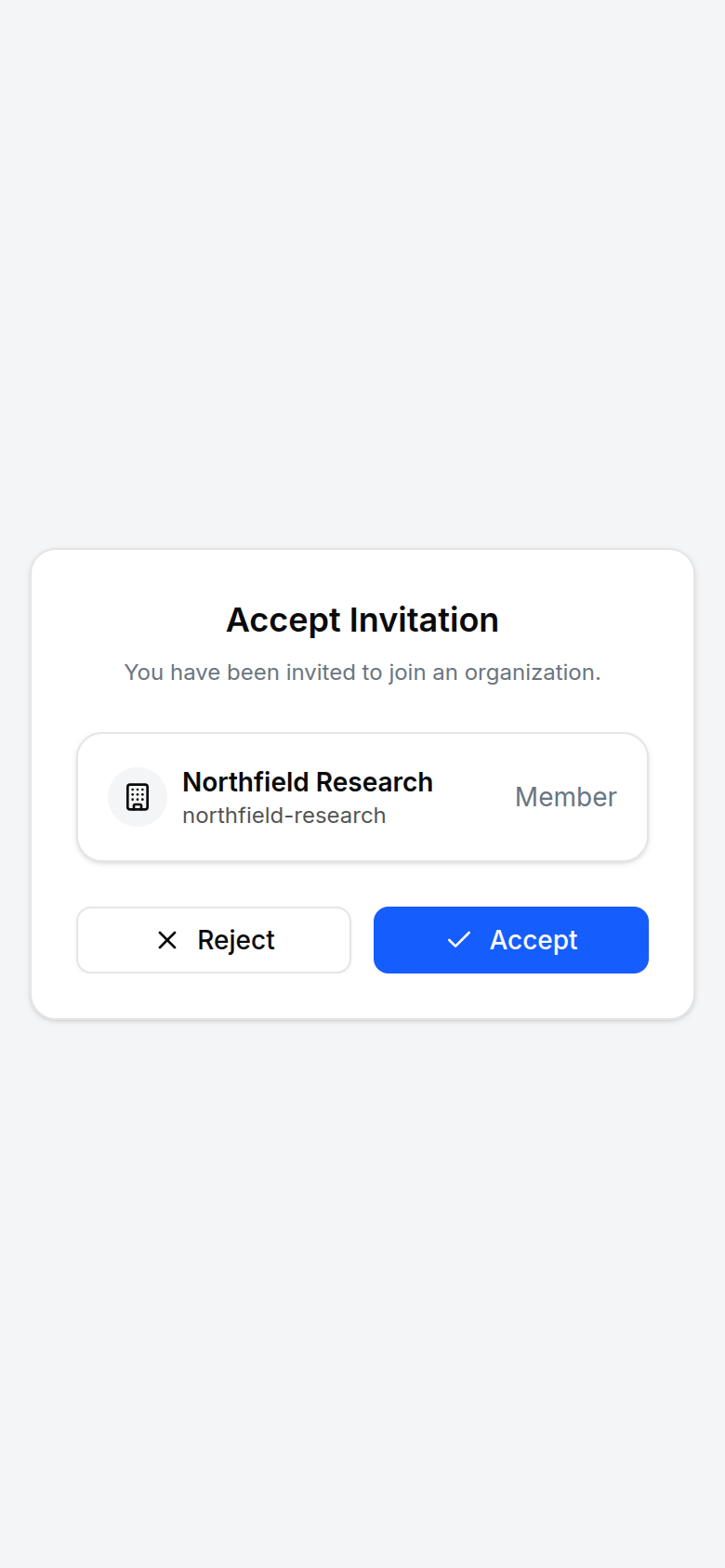
You’re taken straight into the app as a member of that organization. An invitation older than 48 hours shows “This invitation has expired”, so ask for a fresh one. And if you’re signed in under a different address, accepting fails with “You are not the recipient of the invitation”: sign out and back in with the invited email.
How to delete your LetsFindWhy account
In Settings, the Delete Account card closes your account for good: signing in is blocked and your password and passkeys are removed. Recordings and sessions shared with your team stay with their projects. If you have a password, you confirm with it; a passwordless account can only be deleted within 15 minutes of signing in. Sign in again first if deletion is refused.
Tips for researchers
- Point client stakeholders at Sign in with Email Link. Observers who log in once a month have no password to forget and nothing to reset: the inbox is the credential.
- Map roles deliberately: Admin for whoever runs recruitment, invitations, and billing; Member for moderators and analysts. Upgrading, cancelling, and the billing portal are gated to Owners and Admins. Every member can still view the subscription.
- Invitations bind to the exact address you type. Invite the address the person will actually sign in with. Accepting from an alias or secondary address fails.
- Add a passkey on each machine you moderate from. Passkeys live per device and browser, and a fingerprint is faster than fetching an email between sessions.
- After working on a shared facility machine, open Sessions in your settings and Revoke that sign-in rather than waiting out the 7-day session lifetime.
- Sign-in links are single-use and expire after 15 minutes, so a bounced click means requesting a fresh link, not retrying the old email.