Surveys
A survey is a short list of questions behind a link. People answer on their own, in any browser, with no sign-up, no call and no AI. Each survey belongs to a project and runs before its interviews, after them, or you can run one of each. Surveys are free on every plan, even with no plan at all.
Say you want to know how developers feel about your deploy tooling. Post a four-question survey in your community, read the results the same afternoon, then invite the people who rated it hardest to an interview to find out why.
How to build and share a survey
- Open Surveys in the Project section of the sidebar and click New survey. Give it a title and choose Before interviews or After interviews; you can add a short introduction by clicking the title afterwards.
- Click Add question, type the question and choose How they answer: the same ways to answer as a screener question, from Rating scale to Free text. The preview under the form is exactly what people will see.
- Tick Ask why in a text box to put an optional “Why?” box under the answer. It is the survey’s version of a follow-up question: nothing writes or reads it but people. You can change what the box asks.
- Click Open survey. Under Share, each process the survey runs in has its own link; Copy link beside it gives you the one to post for that process, and the process ticks there add or remove one. Close survey stops it taking answers; the links then say it is closed.
The settings sit under the link. When moves the survey between before and after the interviews. At the end, ask whether we can contact them adds a last step asking for permission and an email; saying no still completes the survey. Close after this many submissions stops taking answers once that many people have finished: the link tells anyone new that the survey has all the answers it needs, and nobody can finish past the limit. The survey itself stays open, and personal links can still be sent, so close it yourself when you are done.
Every question also has a ⋯ menu to copy it into a screener, where you can add a rule for who qualifies. Questions lock the same way screener questions do once people have answered; see Recruitment & screeners.
What people see
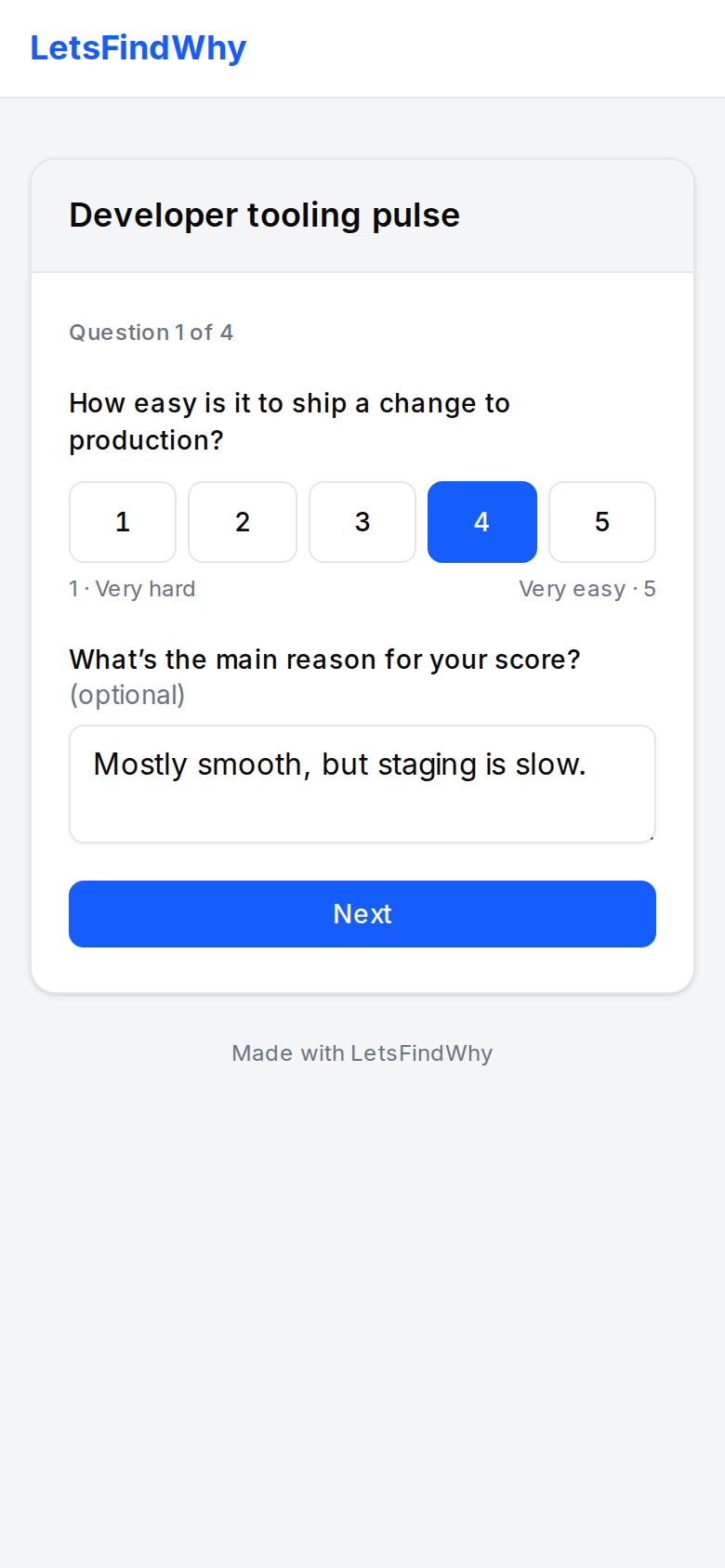
One question at a time, with a Back button, on any phone or computer. Every question needs an answer, unless you let people skip it with “Prefer not to say”. Each answer is saved as soon as they move on, so if someone stops halfway you still see how far they got.
Reading the results
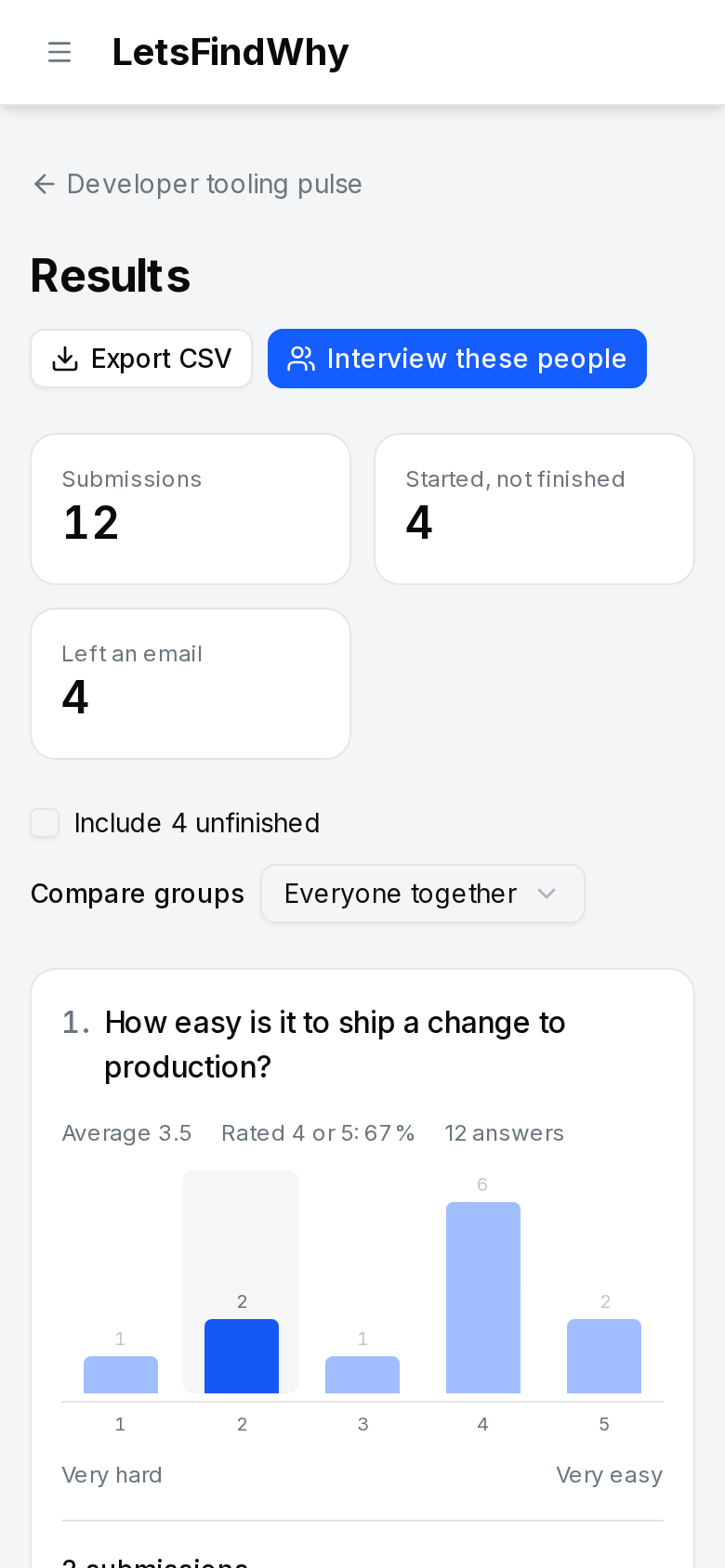
- The top of the results page counts finished submissions, ones started and not finished, and how many people left an email.
- Charts count finished submissions only. Tick Include unfinished to add the answers from people who stopped partway.
- Each question gets a chart. Click a bar to list the submissions behind it, with what they wrote in the “Why?” box; click it again, or Show everyone, to go back.
- Compare groups splits every chart by the answers to one question, such as “Which CI service does your team use?”, with one small chart per group.
- Export CSV downloads one row per submission, with a column per question and, where you asked why, a column with their reason.
From the survey to the interviews
A survey before the interviews feeds straight into recruitment. Everyone who finishes it through a process’s link, agrees to be contacted and leaves an email joins that process’s recruits as soon as they finish, ready to invite from its Recruitment page. They skip the process’s screener and email check; its consent forms still apply.
The results pool the answers from every process’s link, so click a bar to see who gave an answer before choosing whom to invite.
This is where the free part ends: the survey cost nothing, but each interview uses minutes from your plan once it runs. See Billing.
Before the interviews, or after
A survey before the interviews finds people worth talking to, or gives them something to think about first. A survey after them follows up: what they would pay, how the session went, or a question you only thought of once the interviews were done. A project can have both.
Each survey runs in the processes you add it to on the project’s Surveys page, where every process lists its own and can create a new one. The dashboard shows a survey in each of its processes, just above the interviews or just below them, with how many people have finished it. Each process’s row on the Surveys page has a button to copy that process’s link.
Personal links
The shared link is anonymous. To know who answered, send personal links instead: each person gets an email with a link that is theirs alone, and what they answer is kept with their interview.
- Open the survey. Under Personal links it says who they go to, from the processes it runs in: for a survey after the interviews, everyone who took part in one; before, everyone invited to an interview that has not happened yet.
- Click Email and confirm. Each person gets one email; anyone already sent a link is skipped, so you can send again later to the people interviewed since.
- The counts under the heading show how many were sent a link and how many have answered.
Someone on a personal link is greeted by name and is not asked for contact details. Opening the link again picks up the same response: it starts again from the first question, and the answers they already gave are kept unless they change them. Their answers also show on the Responses page, where Compare groups can split an interview question by a survey question, for example how people who said they would pay rated the onboarding.
Free, and what keeps it free
Surveys never use AI, video or transcription, so they cost nothing to run. To keep a public form host from being abused, each plan has a monthly number of finished submissions across all your surveys. Unfinished ones never count. Once the number is reached, survey links say they are not taking more answers until the next month.
A submission is anonymous unless the person leaves an email. In the results, Erase their contact details removes the email and name and keeps the answers. The recruit it added is deleted too, unless they have already been invited to an interview: then they stay in that session without the email, the name or a tie to the answers.