AI-moderated interviews
The AI moderator is a voice interviewer built into LetsFindWhy. It joins your interview as a participant called AI Moderator, welcomes your respondent, asks every question in your discussion guide (the list of questions and topics that structures an interview), listens to the answers, and wraps up on its own.
That means you don’t have to be on the call. Write your questions once, switch on the AI moderator, and send out join links. Every respondent gets the same interview, at any hour, and you review the recording and transcript afterwards.
Say your developer API has users scattered across every time zone. Put your questions in a discussion guide, turn on Use AI Moderator, and email ten developers their links. The AI interviews each one whenever they click, and you listen back the next morning.
How the AI moderator works
The AI needs a discussion guide assigned to the interview. The guide is its script. It reads the guide’s Introduction, asks each unchecked question in order, and finishes with the Closing before leaving the call by itself. It speaks the guide’s words exactly as written, so write the guide in the language of the interview.
Everyone in the room sees the AI as an “AI Moderator” video tile. A status bar on the tile shows what it’s doing (Thinking, Speaking, Listening, or Finished), plus the question being asked and a Continue button to move the conversation along.
You stay in control. A human moderator can join at any time to watch, pace the interview, edit the guide mid-session, or remove the AI and take over. And the AI never starts talking until a respondent is actually in the room. Joining alone as moderator or observer doesn’t set it off.
How to set up an interview the AI starts automatically
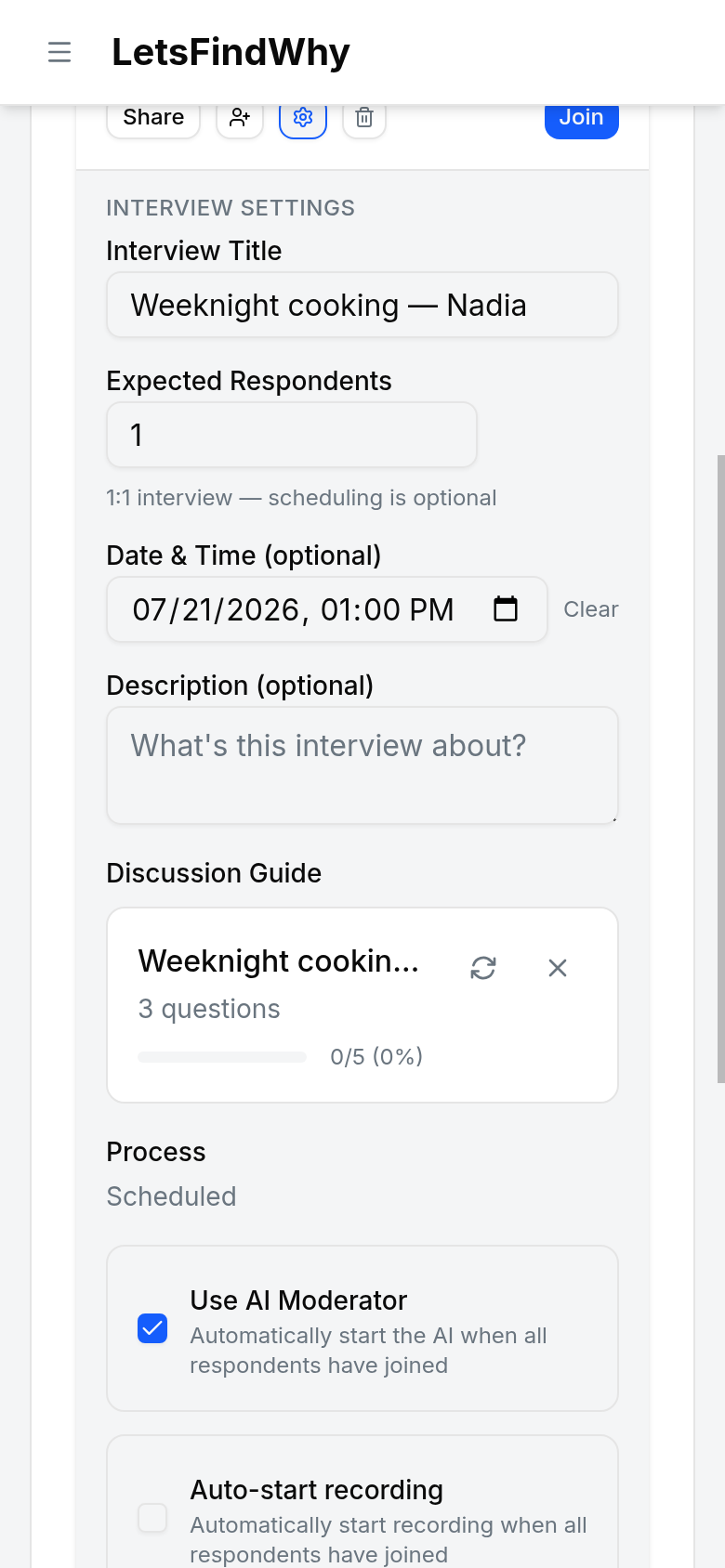
- Open your project’s Interviews page and click Settings on the interview row. The Interview Settings section expands.
- Under Discussion Guide, assign a guide. Without a guide the Use AI Moderator option stays hidden, because the AI has nothing to ask.
- Tick Use AI Moderator. The AI starts the interview once as many respondents as Expected Respondents have joined.
- Click Save Settings. The row now shows an AI badge. Hover over it to see how many respondents must join before the AI starts.
- When the expected number of respondents has joined, the AI enters the room automatically and begins the introduction. A scheduled interview activates by itself if a respondent arrives before you.
How to invite the AI moderator during a live meeting
- Click Join on the interview row to enter the meeting as the moderator.
- Open the discussion-guide tab in the side panel. If no guide is assigned yet, click Assign Guide, pick one under Select a Discussion Guide, and confirm.
- Click the Invite AI Moderator button at the top of the guide checklist. It shows “Inviting...” and then “Connecting...” while the AI joins.
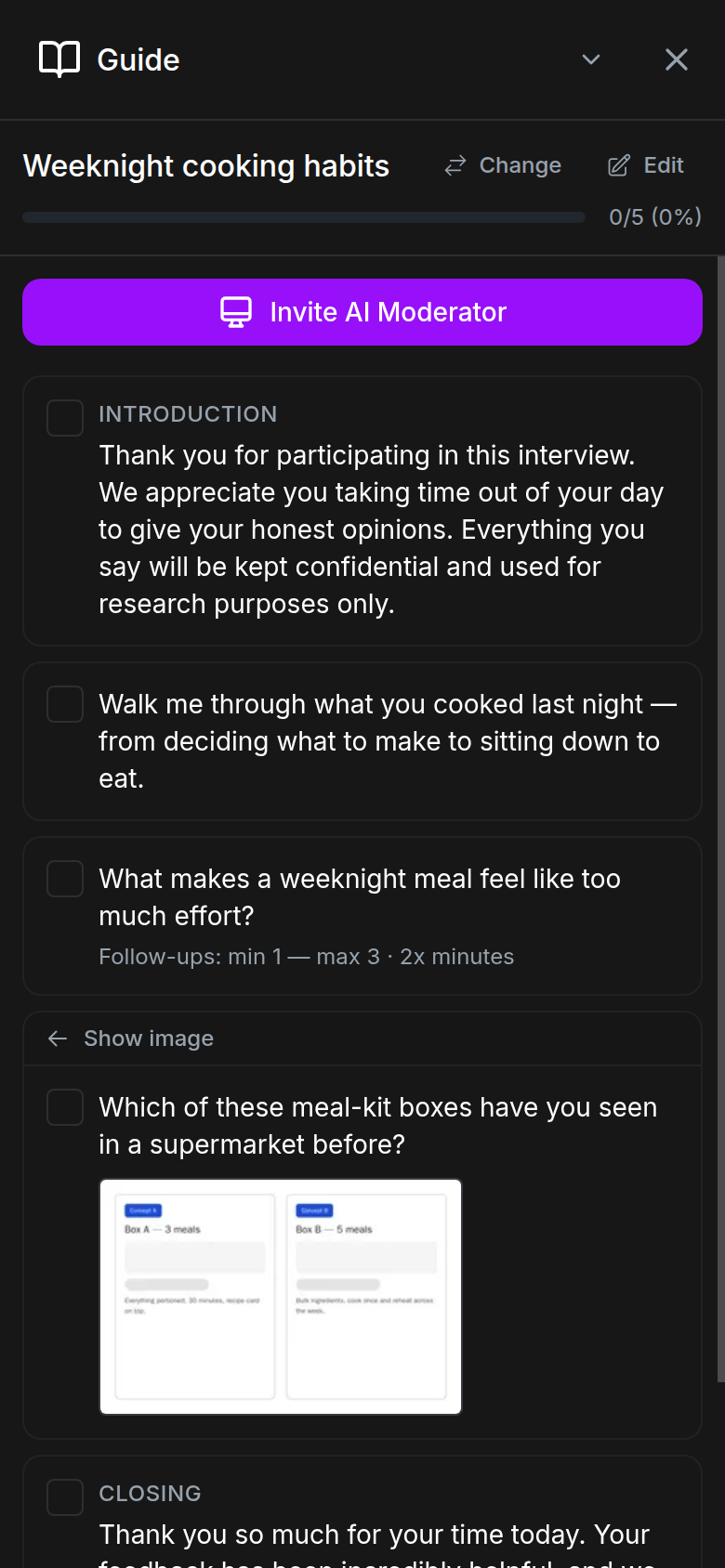
- An AI Moderator tile appears in the video grid. Once a respondent is in the room, the AI pauses briefly, reads the guide’s Introduction, checks it off, and asks the first question.
If the AI can’t connect within a minute, the button changes to Retry AI Moderator with the error message underneath. Click it to try again. The button is disabled with “No questions left to read” when every question in the guide is already checked.
How to run an interview alongside the AI moderator
The status bar on the AI’s video tile is your control surface. It shows the question being asked, an activity dot (Thinking, Speaking, Listening, or Finished), and the Continue button.
- Follow along in the guide panel: the active item pulses with “AI is reading...” or “AI is asking...”, the queued question is locked and marked “Next up”, and answered questions turn green with “Checked by AI”.
- Click Continue to move on. It enables once the respondent stops speaking (or after 30 seconds of silence). Respondents see the button too, so they can advance when they’ve said all they want to.
- Click Edit in the guide header to add, reword, reorder, or delete questions mid-session. The AI picks the changes up live and re-records its audio. Every row stays editable in edit mode, including the one being asked, the queued row, and checked rows.
- You can also check or uncheck guide items yourself, and run image or whiteboard activities on rows the AI isn’t currently driving.
- After the last question the AI reads the Closing, checks it off, shows “Finished”, and leaves the room on its own.
How AI follow-up questions work
By default a guide question is “Open ended”: the AI asks it, listens, and moves on. Change the question type to “With follow-ups” and the AI also probes: it comes up with spoken follow-up questions on the spot, based on what the respondent just said.
You set the range with “Minimum follow-ups” and “Maximum follow-ups” (0–5). Below the minimum, pressing Continue gets another follow-up instead of the next question; at the maximum the AI moves on regardless. Every follow-up it asked is listed in italics under its question in the guide panel, so observers and your notes keep the full picture.
Minutes spent on “With follow-ups” questions count double: the question type picker labels them “2x minutes”, and each such question shows its range in the guide. See Billing & usage. If probing questions are central to your studies, check the monthly minutes on each plan before you budget a wave of interviews.
How to stop or remove the AI moderator
- Use Remove participant on the AI Moderator tile. The AI leaves immediately and the guide highlights clear for everyone.
- Or let it finish on its own: the AI leaves after reading the Closing, and shuts down automatically if the last person leaves the room.
- You can bring it back any time with Invite AI Moderator. A fresh run starts from the first unchecked question and clears the follow-up notes recorded by the earlier run.
How the AI moderator asks rating and choice questions
- When it reaches a rating or choice question, the AI moderator puts it on the respondent’s screen and reads it out with how to answer, for example “on a scale from 1 to 5, where 1 is very hard and 5 is very easy. Tap it on screen or just tell me.”
- The respondent can tap the answer or say it. A spoken answer is saved straight away and appears selected on their screen with “Heard you say 4/5. Tap to change.”, so a mishearing is one tap to fix. The AI never asks them to confirm it, and the words it heard show on hover in the live tally.
- With more than one respondent in the session, answers are tapped only. The AI asks everyone to tap their answer on screen, because it cannot reliably tell who said what in a group.
- If the question is set to Answer, then ask why, the follow-up builds on the answer: “You said 4. What would make it a 5?” For a ranking it asks about the top and bottom items.
Tips for researchers
- To field a study without booking a single call, turn on Immediate AI interviews on a recruitment process: every invited respondent gets a personal link that starts their own 1:1 AI-moderated session the moment they click it. See Meetings & live sessions.
- Observers can watch an AI session live and discuss it in the Backroom (the observers-only chat channel). The guide checklist syncs in real time, so the backroom always knows which question is up next.
- The AI asks your questions in the language the guide is written in. For multi-market studies, run one Process per language and give each its own guide, written in that language.
- Auto-start and the invite button both stand down when every guide question is already checked. Untick questions manually if you want the AI to re-run part of a guide.
- Steer the interview by editing mid-session: type a custom probe into the guide while the AI is listening and it will ask it in order. Only checking or unchecking rows in the checklist view is blocked while the AI is asking or has queued that row.
- A minimum of 1 on a “With follow-ups” question guarantees at least one probe for every respondent, and the maximum caps runaway probing. Budget these questions deliberately, because they bill at 2x minutes.