Reports & analysis
Once your interviews start, two questions come up every day: how far along is the research, and what are people actually telling you? This guide shows where to answer both in LetsFindWhy.
Progress lives in two places: the project Dashboard, which sums up each stage of your study, and the Interviews page, which lists every interview with its live status. Your findings live in the recordings and transcripts of finished interviews.
You’ve set up ten interviews about why users cancel your app. One glance at the Dashboard tells you six are done and two are booked; the Interviews page tells you exactly who has joined and whose invitation is still waiting.
Where to see research progress and find your interview data
Three project pages work together:
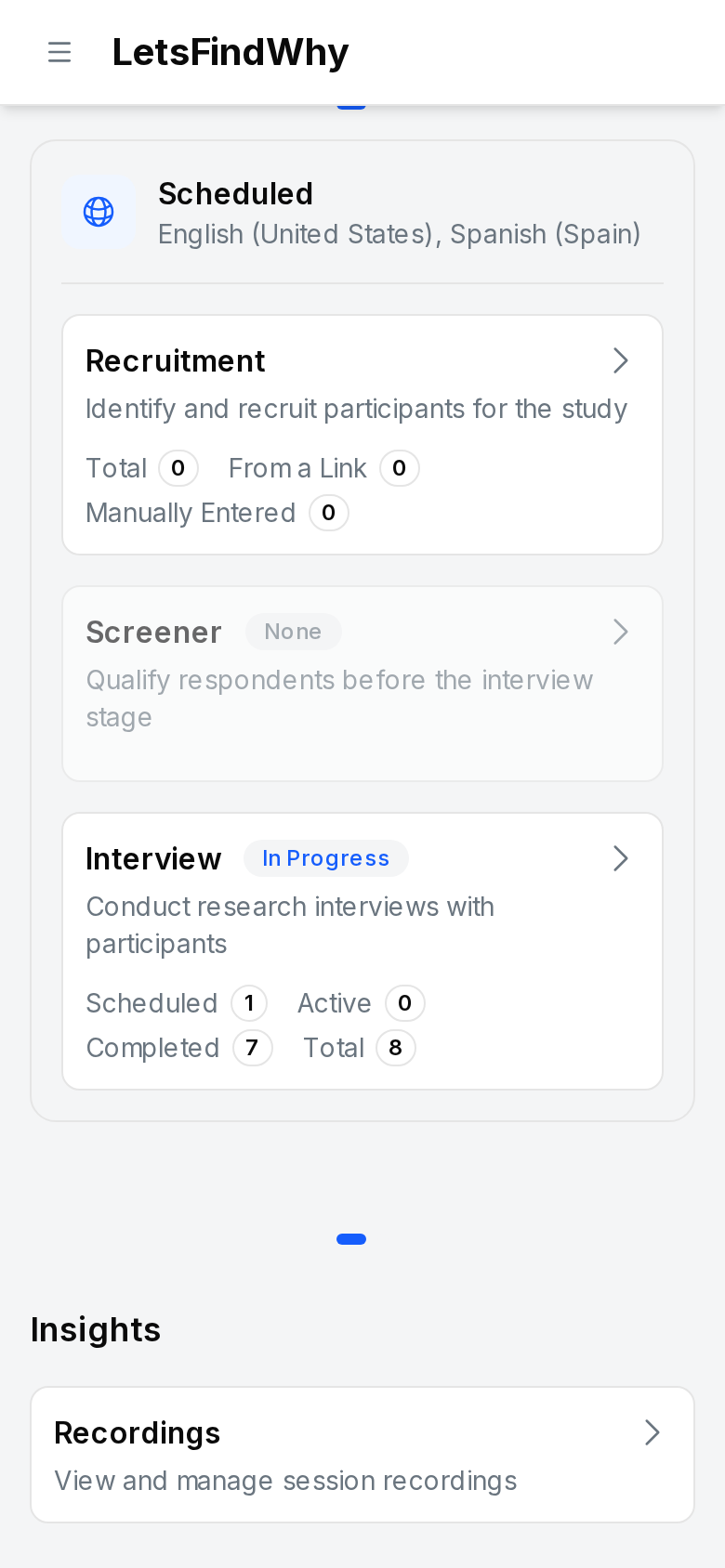
- Dashboard: one pipeline per process (a process is one track of your study, for example one per language or market). Its Interview tile counts how many interviews are scheduled, active, and completed.
- Interviews: every interview in the project, grouped by process, with live status badges and per-respondent invitation states. This is where you watch fieldwork happen.
- Recordings: the video and searchable transcripts of finished interviews, your raw material for analysis.
How to check research progress on the project Dashboard
- In the sidebar under Project, click Dashboard.
- Find the process you care about. Each one shows its own pipeline of phase tiles.
- Read the Interview tile’s status chip: Not Started, In Progress (at least one interview is booked or running), or Complete (every interview has ended).
- Check the tile’s counts: Scheduled, Active, Completed, and Total.
- Click the Interview tile to jump straight to the Interviews page.
- Scroll down to Insights and open Recordings to review finished sessions.
How to review interview activity across a project
The Interviews page is your day-to-day view of fieldwork: what’s booked, what’s live, and who has shown up.
- In the sidebar under Project, click Interviews.
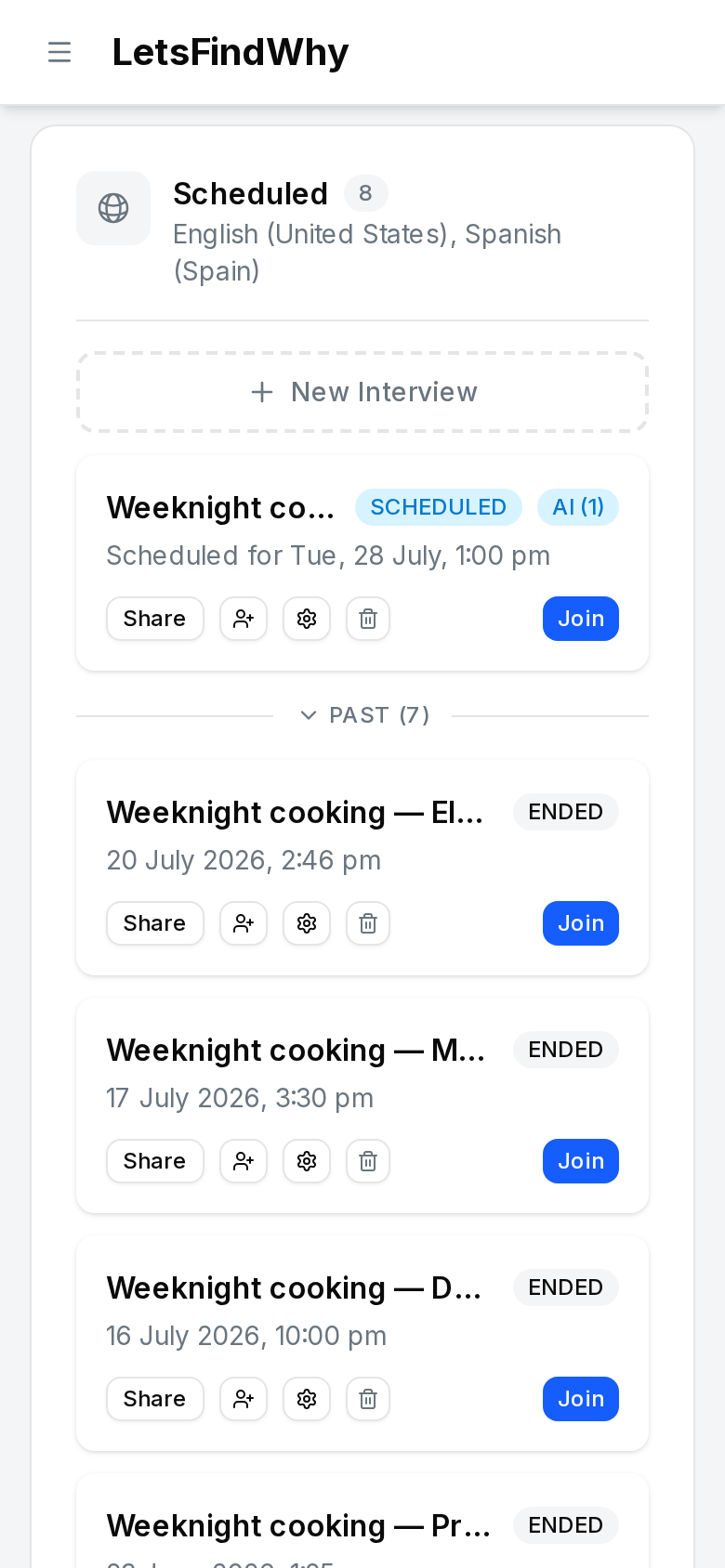
- Scan the sections: interviews are grouped by process, each with its name, languages, and an interview count. Interviews that don’t belong to a process appear under Unassigned.
- Read each row’s status badge: SCHEDULED, ACTIVE, or ENDED, plus a “Scheduled for” date when a time slot is set. Newest interviews come first; older ones sit under Past.
- Expand Participants on a row to see each respondent’s state: Invited, Joined, or Revoked. Rows can also read Live, Done, or Not invited. Use Re-send invitation email if someone can’t find theirs.
- Click Share to open Share Links and copy a role-specific join link: Moderator, Panelist, or Observer. “Link copied!” confirms each copy.
- Leave the page open during fieldwork: while an immediate AI interview is pending or live, or a scheduled interview still has outstanding invitations, the list refreshes itself every 20 seconds. A live human-moderated interview whose participants have all joined does not auto-refresh. Reload to see it flip to Ended.
How to monitor AI-moderated interviews as they run
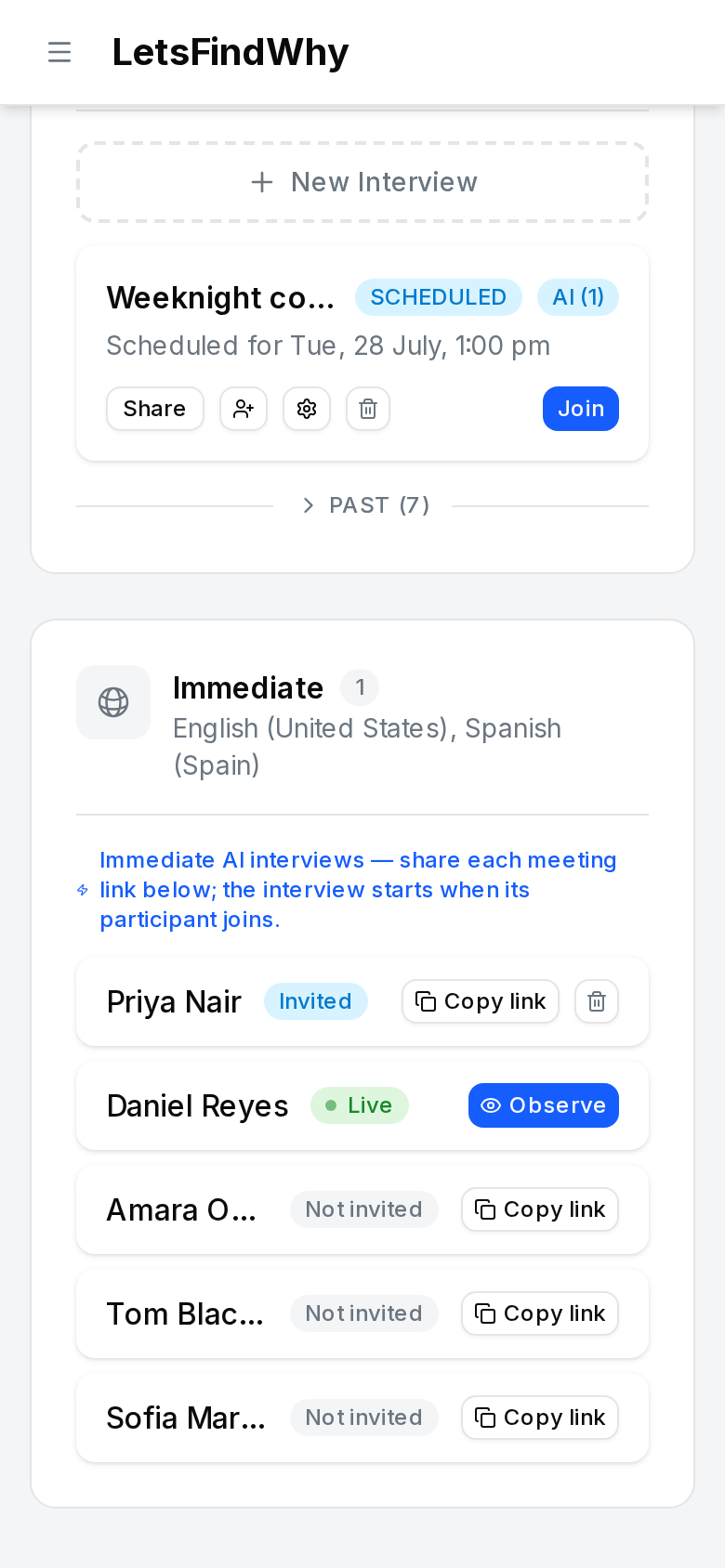
With immediate AI interviews, every recruited respondent gets a personal meeting link and the AI moderator starts the interview the moment they join, no scheduling needed. The Interviews page is where you watch it all happen.
- Open Interviews. A process running immediate AI interviews shows one row per recruited respondent. If it’s empty, add respondents on the Recruitment page and their meeting links will appear here.
- Click Copy link on a Not invited row to create that person’s personal meeting link and share it with them. The button shows “Copied!” when the link is ready.
- Watch the row change state as things happen: Invited once the link is out, Live while the AI interview is running, and Ended when it finishes.
- Click Observe on a Live row to watch the interview in real time without interrupting it.
- Click Open on an Ended row to review the finished interview, or find it later on the Recordings page.
- To withdraw someone, click Cancel interview, and their invitation link stops working.
Can LetsFindWhy generate an AI research report?
No, the analysis is yours to do. Transcripts are the closest thing to a report: search everything your respondents said and pull quotes with exact timestamps. See Transcripts for how.
Tips for researchers
- Run one process per market or language. The Dashboard then shows a separate pipeline per fieldwork wave, and the Interviews page keeps each wave in its own section, so parallel cohorts never blur together.
- Treat the Interviews page as a fieldwork monitoring console: leave it open on a second screen during fieldwork, and status and invitation flips arrive without a reload.
- Give clients the Observer link from Share Links. They can watch sessions live and talk in the Backroom (the observers-only chat channel) without appearing on camera.
- If inviting is blocked because all expected respondent spots are taken, raise the expected respondents in that interview’s Settings section (open it with the row’s Settings button).
- Recordings and transcripts are the analysis artifacts. There’s no report export, so plan your analysis around transcript search and timestamps for pulling quotes and clips.
- Deleting an interview cannot be undone, and cancelling an immediate AI interview permanently disables that respondent’s link. Both dialogs warn you first.